An advanced payment lets one crew member's payment be processed earlier than the rest of the crew payroll, while the remaining crew continue through the standard payroll cycle.
Create an advanced payment
- Open the Summary tab
In the Management Site payroll module, navigate to the Summary tab.
- Create the advanced payment
Click the three dots next to the relevant crew member and select Create Advanced Payment.
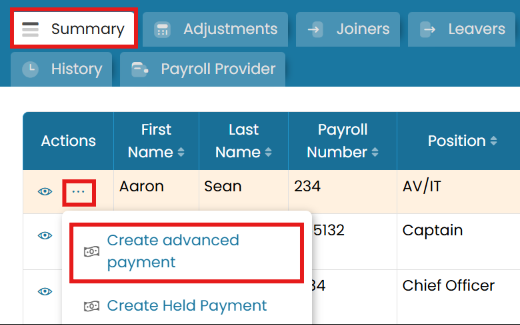
Summary tab — Create Advanced Payment - Enter date and comment
Enter the requested payment date and a comment, then click Submit.
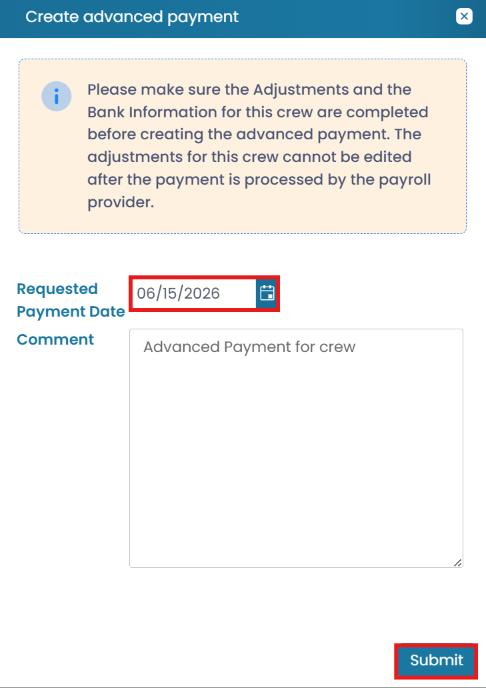
Enter the requested payment date and a comment
Once submitted, the payroll record and any associated adjustments are locked and sent to the Employer as a separate payroll record, so separate funding requests run alongside the payroll for the remaining crew members.
Finalise and release
- View the advanced payment
In the Employer Site, navigate to the Payroll Provider tab, click the three dots next to the crew member and select View Advanced Payment.
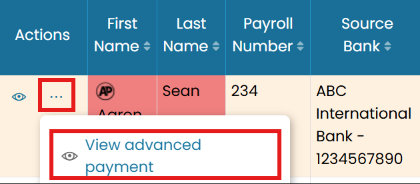
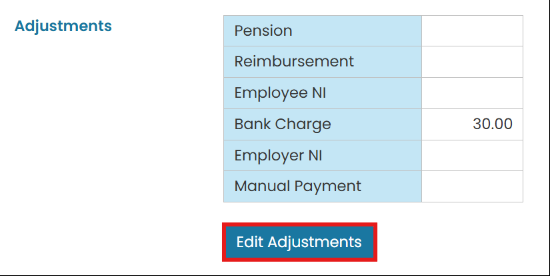
View Advanced Payment and edit adjustments - Update adjustments
If necessary, update any recurring adjustments by selecting Edit Adjustments.
- Submit for funding
When all details are finalised, click Change Status to Submitted for Funding. This generates a funding request while still allowing additional adjustments if required.
Change status to Submitted for Funding - Send to the bank
Once approved by the Employer, the payment is transmitted to the bank for processing.
Common questions
What is an advanced payment?
How do I create an advanced payment?
Is the requested date guaranteed?
How do I finalise and release an advanced payment?
Can a crew member get another payment the same month?
Still stuck on this step?
Our payroll support team will pick it up as a Zendesk ticket and reply by email.