
A delayed payment is used when a crew member's payment amount has been finalised, but the payment must be temporarily withheld from bank submission due to incorrect, incomplete, or unverified bank details.
Create a delayed payment
- Open the vessel
In the Employer Site, select the vessel by clicking the View icon, then navigate to the Payroll Provider tab.
- Create the delayed payment
Click the three dots next to the relevant crew member and select Create Delayed Payment. Enter a comment and click Submit.
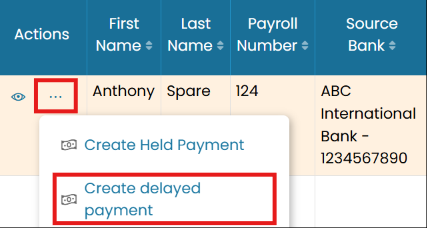
Create Delayed Payment from the Payroll Provider tab 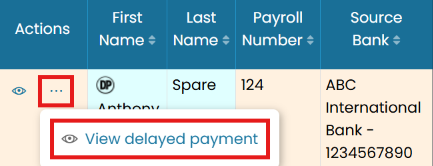
While held, the amount cannot be modified
Release the payment
- View the delayed payment
When ready to process, click the three dots and select View Delayed Payment.
View Delayed Payment and Release Payment - Release payment
Click Release Payment in the top-right corner.
- Enter the authorization code
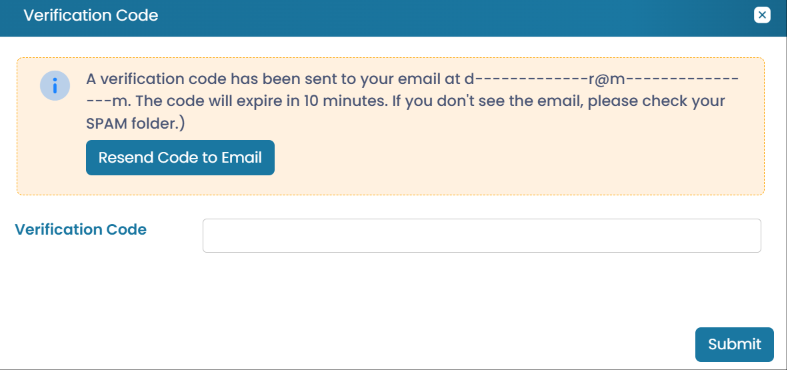
Enter the authorization code sent to your email and click Submit.

Enter the email authorization code and confirm bank details - Confirm the bank details
Update the payment type and select the appropriate bank details. Review the information and click Submit, then enter a comment and click Submit again.
- Second approval
The payment record must then be approved by another user. Once approved, the payment is submitted to the bank for processing.
Common questions
What is a delayed payment?
How do I create a delayed payment?
Can I change the amount while it's delayed?
How do I release a delayed payment?
Why is an email authorization code required?
Delayed vs held payment — what's the difference?
Still stuck on this step?
Our payroll support team will pick it up as a Zendesk ticket and reply by email.