
A held payment lets administrators temporarily stop a crew member's payroll payment before processing, preventing it from being included in the payment submission to the bank. Use it when a payment needs review or when the amount is not yet finalised.
Create a held payment
- Open the Payroll Provider tab
From the Employer site, go to the Payroll Provider tab.
- Create the held payment
Click the three dots next to the relevant crew member and select Create Held Payment. Enter a comment and click Submit.
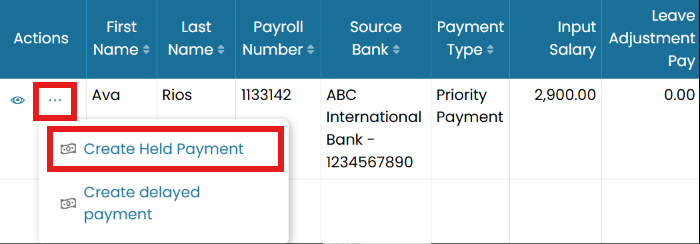
Create Held Payment from the Payroll Provider tab
The record is separated from the main payroll and highlighted in both the Management and Employer sites.
Finalise adjustments and submit for approval
- View the held payment (Management site)
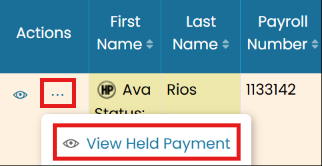
For Management site users, navigate to the Summary tab, click the three dots next to the crew member and select View Held Payment.
- Edit adjustments
Modify the adjustments by clicking Edit Adjustments. Enter the required changes and click Submit.
- Submit for approval
When the adjustments are complete, select Submit for Approval, enter a comment and click Submit.
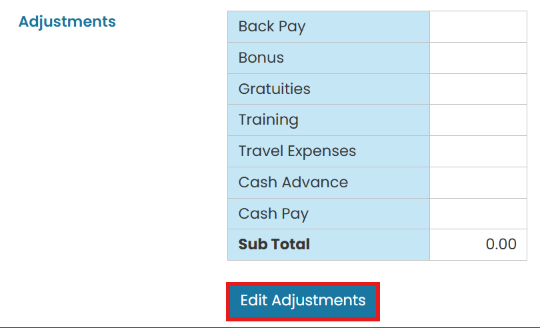
Edit adjustments and submit for approval
Release the held payment to the bank
- View the held payment (Employer site)
From the Employer site, in the Payroll Provider tab, click the three dots next to the crew member and select View Held Payment.
- Finalise adjustments
Additional adjustments can still be added if necessary. Once finalised, click Submit.
- Submit for funding
When ready, click Change Status to Submitted for Funding. This generates a funding request.
Change status to Submitted for Funding to release - Progress to the bank
The record then progresses through Funding Received → Payments Created → Approved. Once approved, the payment is sent to the bank.
Common questions
What is a held payment?
How do I create a held payment?
How do I release a held payment?
What if the amount isn't finalised yet?
Does a held payment affect the rest of payroll?
Held vs advanced vs delayed — which do I use?
Can I still make changes after putting a payment on hold?
Still stuck on this step?
Our payroll support team will pick it up as a Zendesk ticket and reply by email.