Once employers exist, assign the correct employer to each crew member. This ensures payroll runs against the right entity and that funding and payment instructions are grouped correctly.
Link an employer to a crew profile
- Open the Crew module
From your Fleet account, click the Modules icon and select Crew.
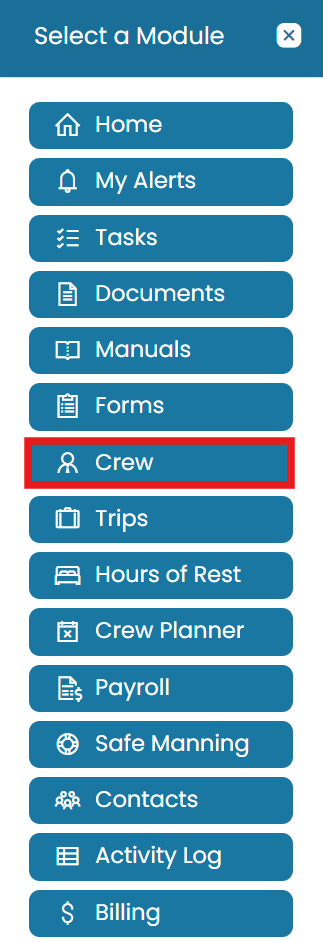
Open the Modules icon and select Crew - Edit the crew member
Click the three dots next to the crew member's name and select Edit.
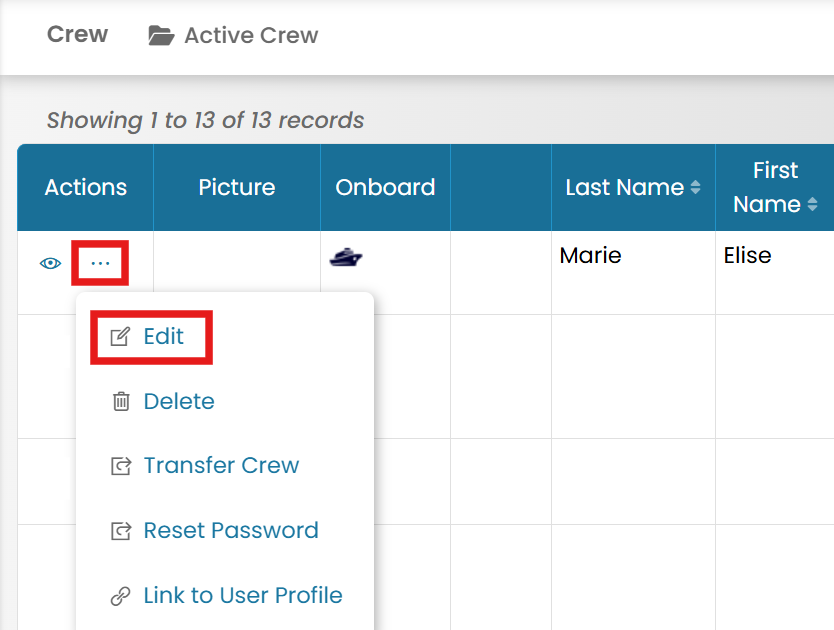
Edit the crew member from the three-dot menu - Choose the employer
Under the Employment Information tab, select the employer's name from the dropdown menu.

Select the employer under Employment Information - Save
Once the changes have been made, click Submit to save the updates.
Common questions
How do I link a crew member to an employer?
Open the Crew module, click the three dots next to the crew member and select Edit, then under the Employment Information tab choose the employer from the dropdown and click Submit.
Why does each crew member need an employer?
The employer determines which entity payroll runs against and how funding and payment instructions are grouped.
Can I change a crew member's employer later?
Yes — edit the crew member and select a different employer under the Employment Information tab, then Submit.
Where is the employer field on a crew profile?
It is on the Employment Information tab of the crew member's Edit screen.
What if the employer I need isn't listed?
Create it first under Administration → Employers, then return to the crew profile to link it.
Was this article helpful?
Still stuck on this step?
Our payroll support team will pick it up as a Zendesk ticket and reply by email.