A user role defines the access permissions and alerts a user has in the system. You must create a user role before you can create a payroll user, because the role controls what that user can see and do.
What a user role is
Roles keep access tidy and consistent: assign the same role to everyone doing the same job rather than configuring permissions person by person.
Create a user role
- Open User Roles
On the blue ribbon, select Administration then User Roles.
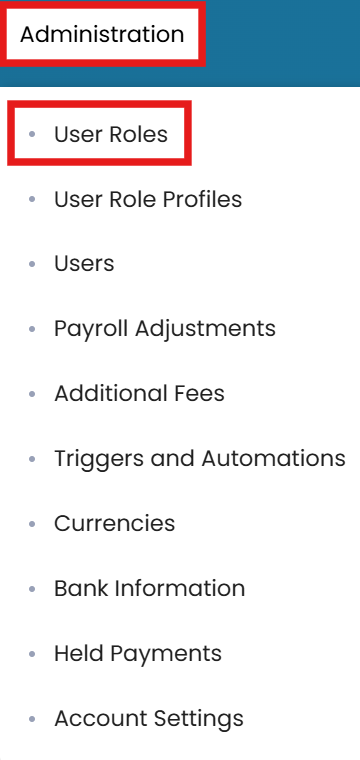
Administration → User Roles on the blue ribbon - New user role
In the top-right corner, click the three dots and select New User Role.
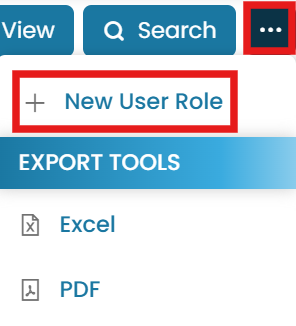
Choose New User Role - Name it and set permissions
Enter the title of the user role. If you want the role to have full permissions, check the Full Permission box.
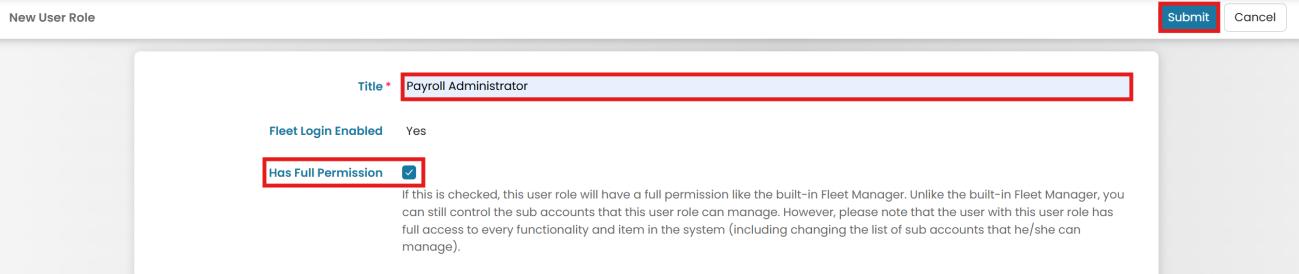
Name the role and set Full Permission if required - Submit
Click Submit once done.
Setting permissions
- Open the role
Go back to the main page and click the View icon next to the newly created user role.

Open the role with the View icon - Edit permissions
Go to the Permissions tab and click Edit Permissions in the top-right corner.

Permissions tab — Edit Permissions
Duplicating or copying settings
To duplicate the user role, go to the Properties tab, click the three dots and select Create Duplicate. To copy settings from another user role, select Copy Settings from Another User Role.

Common questions
How do I create a user role?
What does a user role control?
How do I edit a role's permissions?
Can I copy an existing role's settings?
Do I need a role before creating a user?
Still stuck on this step?
Our payroll support team will pick it up as a Zendesk ticket and reply by email.