The Account Settings section lets you upload a logo that appears on the payroll slips for each vessel you manage — a small touch that makes payslips look professional and on-brand.
What account settings control
The logo you upload here is applied to generated payroll slips for the vessel.
Upload a logo
- Open Account Settings
On the blue ribbon, click Administration and select Account Settings.
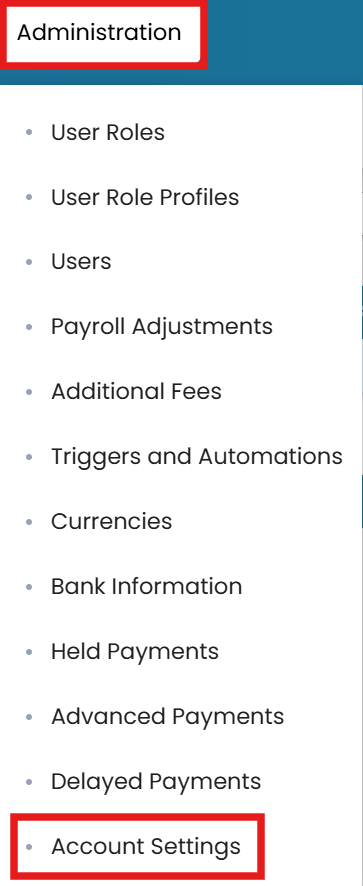
Administration → Account Settings - Edit
To upload a logo, click the Edit icon.
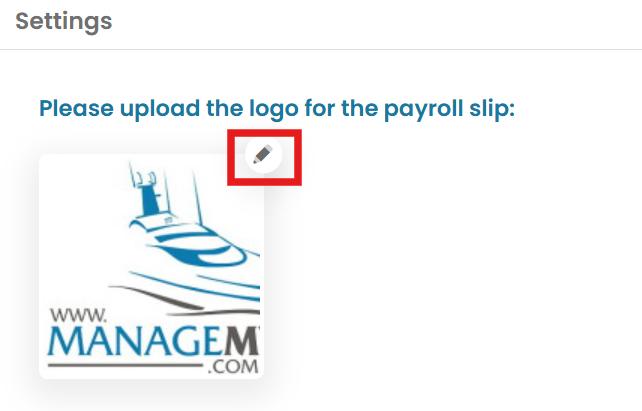
Edit, then Change Avatar to upload the payslip logo - Change avatar
Select the Change Avatar icon.
- Choose and submit
Choose the image file from your device and click Submit to save your changes.
Common questions
What do Account Settings control?
They let you upload a logo that appears on the payroll slips for each vessel you manage.
How do I upload a payslip logo?
Go to Administration → Account Settings, click the Edit icon, select the Change Avatar icon, choose the image file, and Submit.
Where does the uploaded logo appear?
On the generated payroll slips for the vessel.
Can each vessel have its own logo?
Yes — Account Settings lets you upload a logo per vessel you manage.
Is there a video for account settings?
Yes — the Setting Up Account Settings article includes a video walkthrough.
Was this article helpful?
Still stuck on this step?
Our payroll support team will pick it up as a Zendesk ticket and reply by email.