
Adding bank information allows the system to process payroll payments and include the details in payment instructions submitted to your bank. These are the source accounts payments are made from.
Why bank information matters
Without valid bank information the system cannot generate complete payment instructions or bank files. Add every account you disburse from and scope each to the right account or vessel.
Add bank information
- Open Bank Information
On the blue ribbon, click Administration and select Bank Information.

Administration → Bank Information 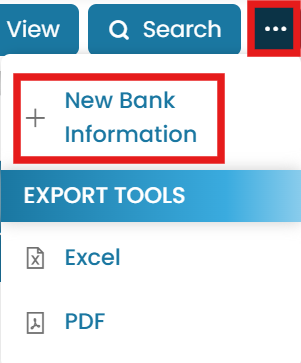
Choose New Bank Information - New bank information
In the top-right corner, click the three dots and select New Bank Information.
- Enter the bank details
Enter all the necessary bank details (account name, numbers, IBAN/SWIFT/BIC and routing information as required).
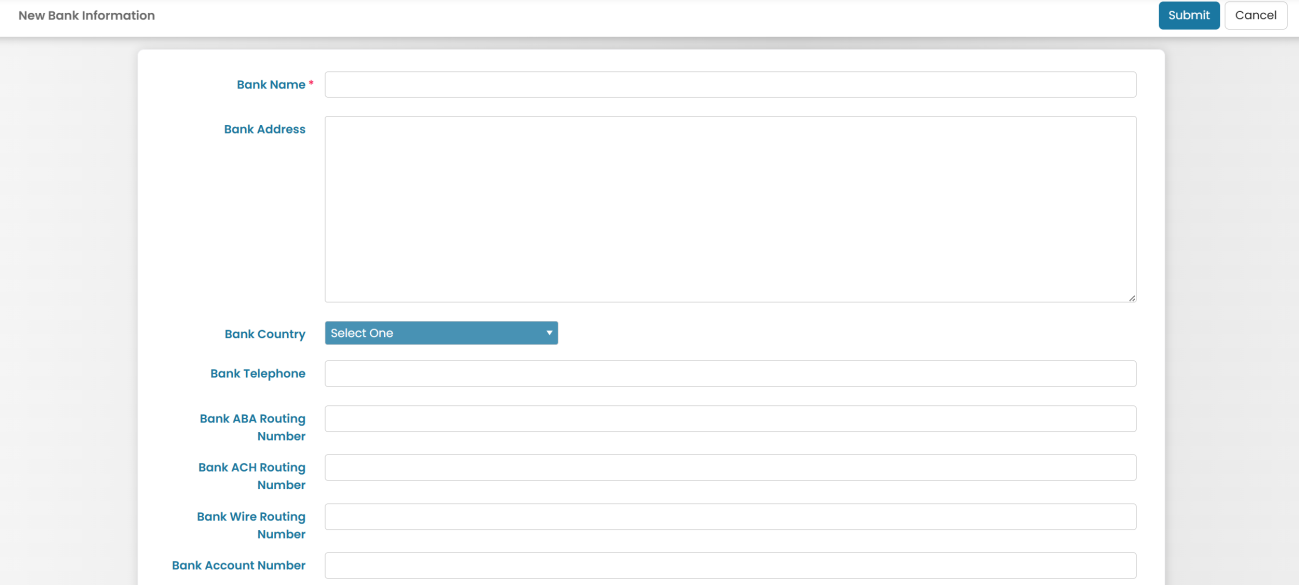
Enter the full bank details - Scope it
Select which account or vessel this bank information should be available for.
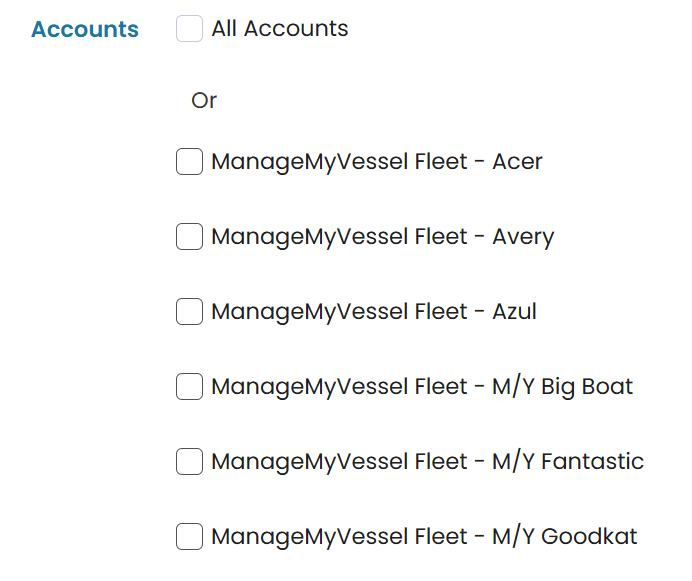
Scope the account to the right vessel, then Submit - Submit
Once all details have been entered, click Submit to save the information.
Common questions
How do I add bank information?
Why does the system need bank information?
What bank details do I enter?
Can I limit a bank account to one vessel?
How does this relate to a crew member's source bank?
Still stuck on this step?
Our payroll support team will pick it up as a Zendesk ticket and reply by email.