
Triggers and automations send emails and create alerts automatically so nobody has to watch the payroll queue. Triggers react to events; automations run on a schedule.
Create a trigger
- Open Triggers and Automations
On the blue ribbon, click Administration and select Triggers and Automations.
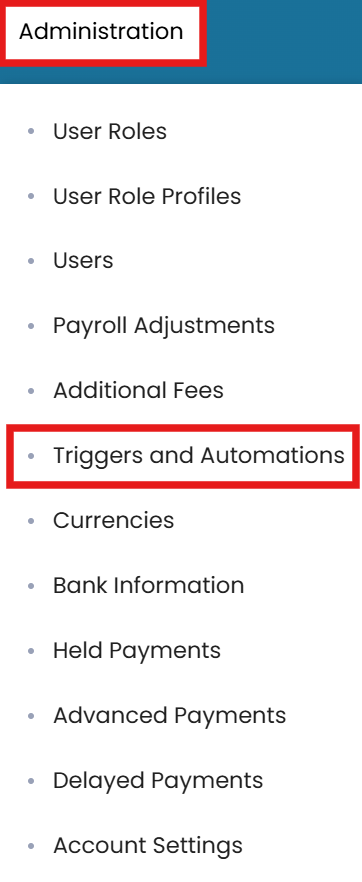
Administration → Triggers and Automations → New Trigger - New trigger
In the top-right corner, click the three dots and select New Trigger, then enter a title.
- Choose when it fires
Set Take Action When: Payroll Status Has Changed (any update to a payroll record), Payment is Held (payment on hold until resolved), or Payment is Released (payment approved and processed for disbursement).
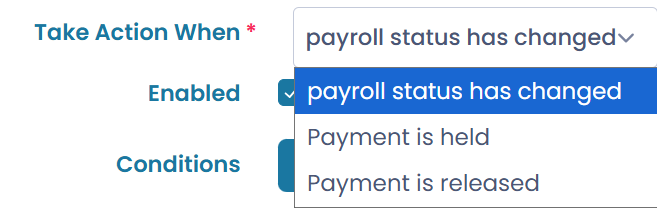
Choose the event under Take Action When - Enable and add conditions
Check the Enabled box to activate the trigger. You may add conditions to control when the actions run.
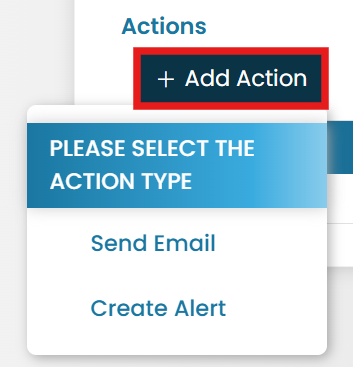
Enable the trigger and add an action - Add an action and submit
Click the Add Action icon to send an email or create an alert, then click Submit to save the trigger.
Set up an automation
- New automation
In the top-right corner, click the three dots and select New Automation, then enter a title.
- Set the timing
Enter the number of days, then choose Days after the date specified in or Days after the start of the month.

New Automation with day-based timing - Enable and add conditions
Check the Enabled box to activate the automation. You may add conditions to filter when the actions run.
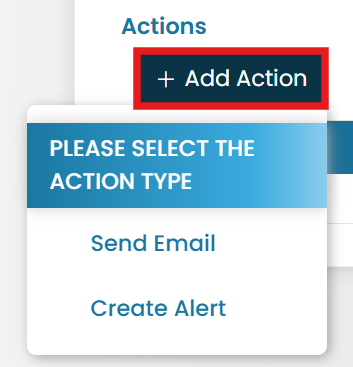
Enable the automation and add an action - Add an action and submit
Click the Add Action icon to send an email or create an alert, then click Submit.
Common questions
What's the difference between a trigger and an automation?
How do I create a trigger?
What events can a trigger fire on?
How do I schedule a time-based automation?
Do I have to enable a trigger for it to work?
Still stuck on this step?
Our payroll support team will pick it up as a Zendesk ticket and reply by email.